What Does an Image Compressor Actually Do?
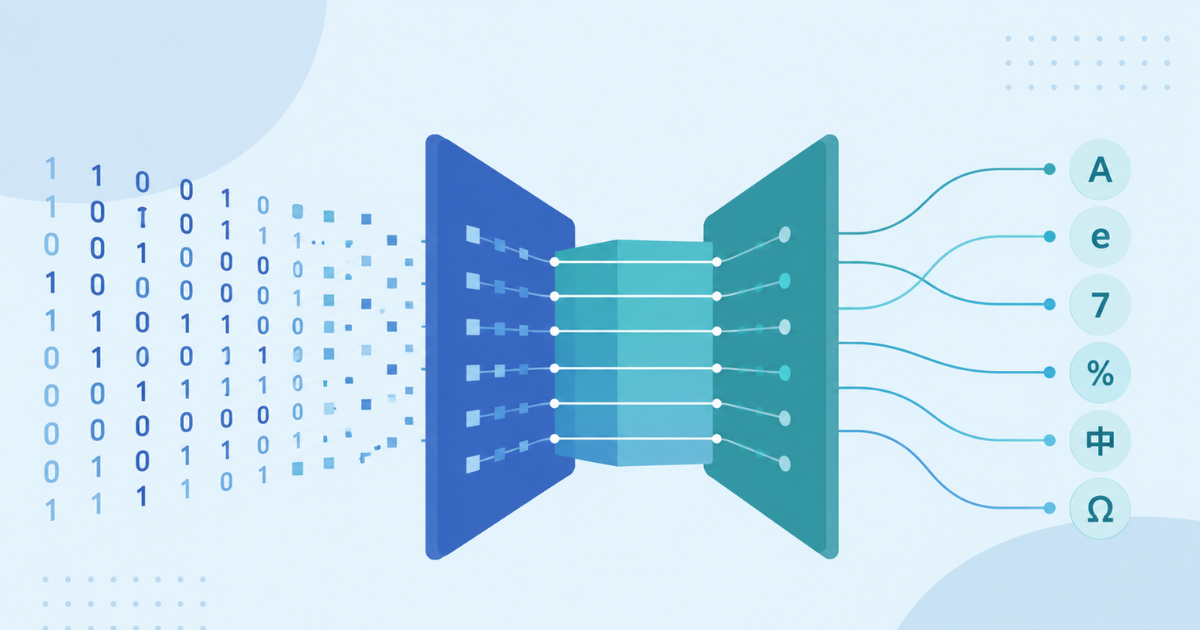
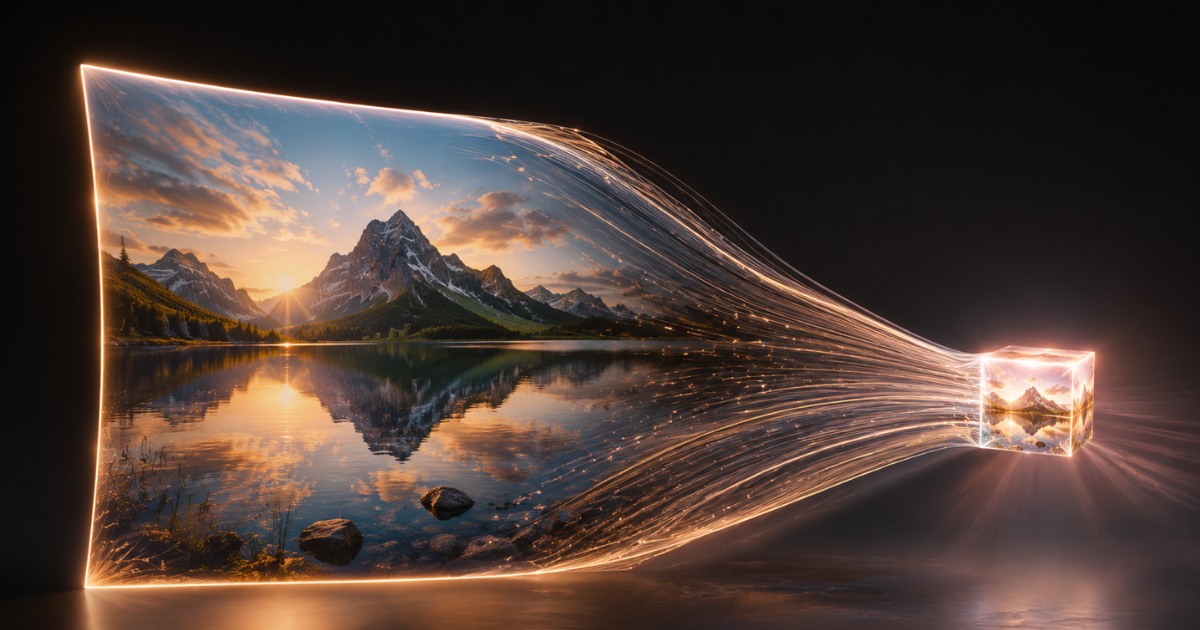
An image compressor reduces the file size of a photo or graphic while keeping it visually close to the original. It works by removing redundant or less noticeable data — extra color information, repeated pixel patterns, or unnecessary metadata — so the file takes up less storage space and loads faster.
The goal isn't just "smaller file." It's smaller file without the image looking obviously worse. Done well, compression is invisible to the eye but very visible in load times, storage costs, and page speed scores.
Why Compressing Images Matters
- Faster website load times — large uncompressed images are one of the most common causes of slow page speed, which affects both user experience and SEO rankings.
- Lower storage and bandwidth costs — smaller files mean less server space used and less data transferred on every page load.
- Better mobile experience — users on slower connections benefit the most from lighter image files.
- Email and upload limits — many platforms cap file sizes; compression gets large photos under the limit without needing to crop or downscale drastically.
- Faster app performance — mobile apps and games that load lots of images benefit directly from smaller asset sizes.
Lossy vs. Lossless Compression
There are two fundamentally different approaches:
- Lossy compression removes some image data permanently to achieve a much smaller file size. JPEG is the classic example — you can dial in the compression level, trading a bit of quality for a much smaller file.
- Lossless compression shrinks file size without discarding any actual image data — it just stores the same information more efficiently. PNG uses this approach, which is why PNGs preserve sharp edges and transparency but generally compress less aggressively than JPEG.
For photos, lossy compression (JPEG or WebP) usually gives the best size-to-quality tradeoff. For graphics, logos, or anything needing transparency, lossless formats hold up better.
How to Compress an Image in Seconds
You don't need Photoshop or command-line tools for everyday compression. The general flow looks like:
- Upload your image — JPEG, PNG, or WebP.
- Pick a compression level — balance file size against visible quality loss.
- Preview the result — check that quality still looks acceptable at your target size.
- Download the compressed file — ready to upload, email, or publish.
OmnifyTools' free Image Compressor does exactly this — batch-friendly, no watermark, and no forced account creation. Drop in your images, compress, and download the results directly.
Choosing the Right Format Before You Compress
Compression only gets you so far if you're using the wrong format to begin with:
- JPEG — best for photos with lots of color variation and no transparency needs.
- PNG — best for screenshots, logos, or anything requiring a transparent background.
- WebP — modern format offering strong compression for both photos and graphics, supported by virtually all current browsers.
Switching to a more efficient format first, then compressing, often produces better results than compressing a poorly-suited format harder.
When Compression Alone Isn't the Whole Solution
A one-off compressor is great for shrinking a batch of photos before uploading them somewhere. But if your website or app is still slow because of how images are served — no responsive sizing, no lazy loading, no CDN delivery — compression alone won't fix the underlying architecture problem.
This is where Riftwood Studio comes in. Riftwood Studio builds full-service web platforms, mobile apps, and game projects with performance baked into the architecture — responsive image pipelines, automated compression on upload, CDN integration, and asset delivery that's fast by design rather than patched after the fact. If page speed or app performance is a recurring problem rather than a one-time fix, Riftwood Studio can rebuild the pipeline properly.
FAQ
Does compressing an image reduce its resolution?
Not necessarily. Compression typically reduces file size by optimizing data, not by shrinking pixel dimensions — though some tools offer resizing as a separate, optional step.
What's the best compression level to use?
For most web use, a moderate-to-high compression setting is visually indistinguishable from the original while cutting file size significantly. It's worth previewing before committing.
Is WebP better than JPEG?
WebP generally produces smaller files than JPEG at comparable quality, though JPEG remains more universally supported by older tools and platforms.
Can I compress multiple images at once?
Yes — batch compression is standard in most modern tools, including OmnifyTools' Image Compressor, which handles multiple files in one pass.
Struggling with a slow site or app because of unoptimized images? Riftwood Studio builds performance-first platforms from the ground up. For a quick fix right now, the free Image Compressor on OmnifyTools shrinks your files in seconds.